
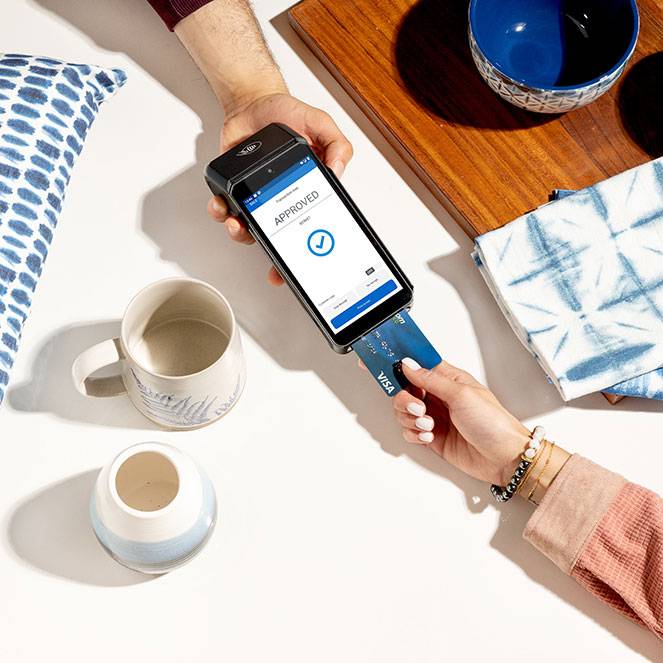
Meet your Chase Wireless Terminal
The Chase Wireless Terminal is built for speed, security and simplicity, helping you process transactions with ease. Accept payments via chip, tap, swipe or manual entry, and stay connected with Wi-Fi or cellular networks (4G), so you are always ready to serve your customers anytime and anywhere.
This guide walks you through setup, transactions, refunds and key features to help you get the most out of your terminal. Let’s get started!
Using an Apex device? If you see “Apex” in the left top corner of your screen, head to the Apex section for steps specific to your device.
Navigating your Chase Wireless Terminal
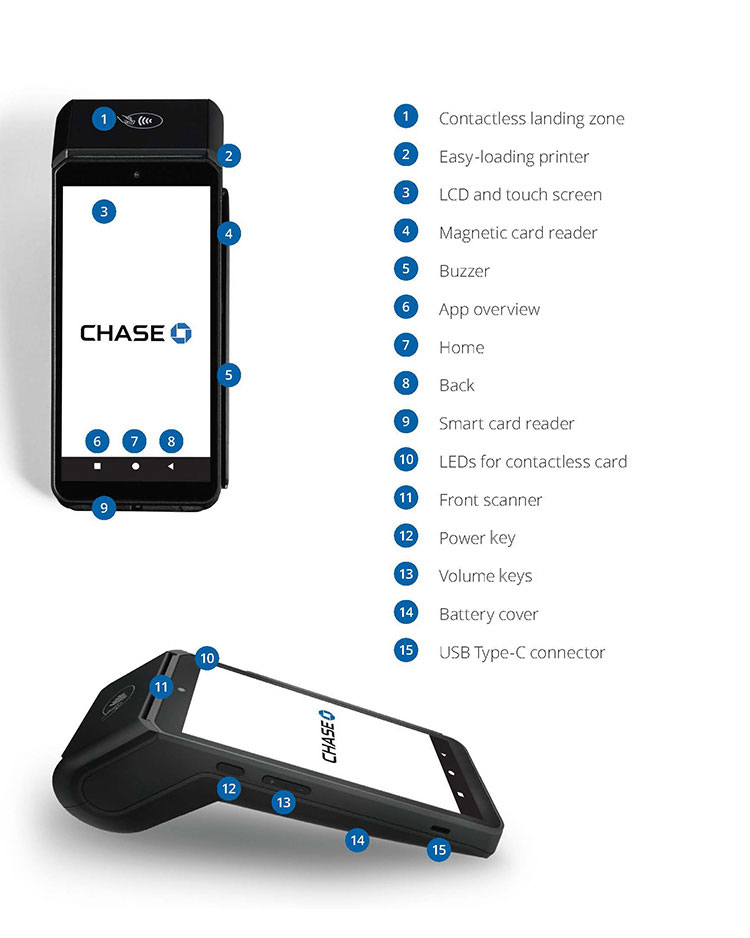
Unboxing your Wireless Terminal
Ready to get started? Follow these quick and easy steps.
1
Power up and connect your device
Connect your device to a power source using the provided cable.
Connect your device to Wi-Fi. Refer to Getting started for detailed steps on setting up your Wi-Fi connection.
2
Set up your password
Set up your credentials for security purposes. You will need these credentials to process refunds.
Refer to Tips, taxes and passwords for detailed steps on setting up your manager credentials.
3
Customize your device
You are now ready to customize your device with preset tips or taxes to make the checkout process smoother.
Follow the steps under Tips, taxes and passwords to complete.
You are now ready to start processing.
Chase Wireless Terminal FAQ
Explore the frequently asked questions below to get set up and troubleshoot any issues on your Chase Wireless Terminal.
Please connect with our Sales team.
The Chase Wireless Terminal can accept tap, chip & PIN, swipe, manual key entry or digital wallets such as Google Pay and Apple Pay.
To power on:
Press and hold the power button for about 1 second until the Chase screen appears
To power off:
Press and hold the power button for more than 2 seconds until the menu appears, then choose Power off
Let's get your Wi-Fi set up. Follow these steps:
- Tap the three lines ☰ at the top left of your screen
- Swipe up and tap the Exit tab at the bottom to return to the Home screen
- Choose Settings
- Choose Network
- Choose Wi-Fi to enable Wi-Fi support. Make sure Wi-Fi is turned on by tapping the toggle button in the top-right corner
- Pick your preferred network from the Use Wi-Fi list
- Enter your Wi-Fi password and tap Connect. If you'd like to see the password as you type it, simply check the box next to Show password
- Once you see the Connected status, you’re all set! Your terminal will now connect to your Wi-Fi automatically.
Go here to watch a video tutorial.
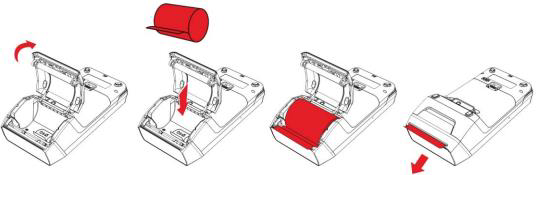
- Turn the device over and lift the latch located at the top of the terminal, pulling it to the rear of the terminal
- Pull the paper up to the top of the terminal while holding the paper and close the cover
- Make sure to press both upper corners of the paper flap to ensure it snaps into place
Here’s a visual reference:
You can choose or change the language for both your terminal and the Chase Payment App. Here’s how:
Terminal language:
- Choose the three lines ☰ at the top left of the screen
- Swipe up and choose Exit at the bottom to return to the Home screen
- Choose Settings
- Choose Language
- Choose the language you want
Chase Payments App language:
- Tap the three lines in the top-left corner of the main menu to open the MENU
- Choose UI Language
- Pick your preferred language and tap Confirm to save your changes
Go here to watch a video tutorial.
Note: changing the language within the app will not change the language of the device.
Make sure your device is always set to the correct date and time:
- Tap the three lines ☰ at the top left of your screen
- Swipe up and tap Exit to return to the Home Screen
- Choose Settings
- Choose Date & Time
- Tap the Use network-provided time toggle for default date and time
- Tap the toggle off to set your own date and time manually
Go here to watch a video tutorial.
The power save timer helps conserve battery life by putting the terminal into a low-energy state after a set period of inactivity. This is especially useful for extending battery life during long periods of no use. Follow these steps:
- Tap the three lines ☰ at the top left of your screen
- In the menu, swipe up and tap Settings
- Enter your Username and Password, then tap Confirm
- Tap the System tab
- Swipe up and find Power save timeout
- Adjust the timeout and enter the value in seconds (e.g, 180 seconds for 3 minutes) and tap Confirm
Go here to watch a video tutorial.
Easily customize your display settings by following these steps:
Adjust Brightness:
- Tap the three lines in the top-left corner of the main menu to open the MENU
- Swipe up and tap Exit to return to the home screen
- Choose Settings
- Choose Display
- Tap Brightness level and adjust it by swiping left or right
Enable Dark Mode:
- Tap the three lines ☰ at the top left of your screen
- Under the MENU tab, find Dark Mode and toggle it ON or OFF based on your preference
Go here to watch a video tutorial.
Chase Assist is the on-device support application for guides, troubleshooting help and additional error codes that may appear on your terminal. You can access this application for 24/7 assistance.